In short
- Most freezing starts in the home network, not at the server
- A cable to the TV fixes more problems than a faster broadband plan
- Clearing cache and restarting the device solves a surprising number of issues
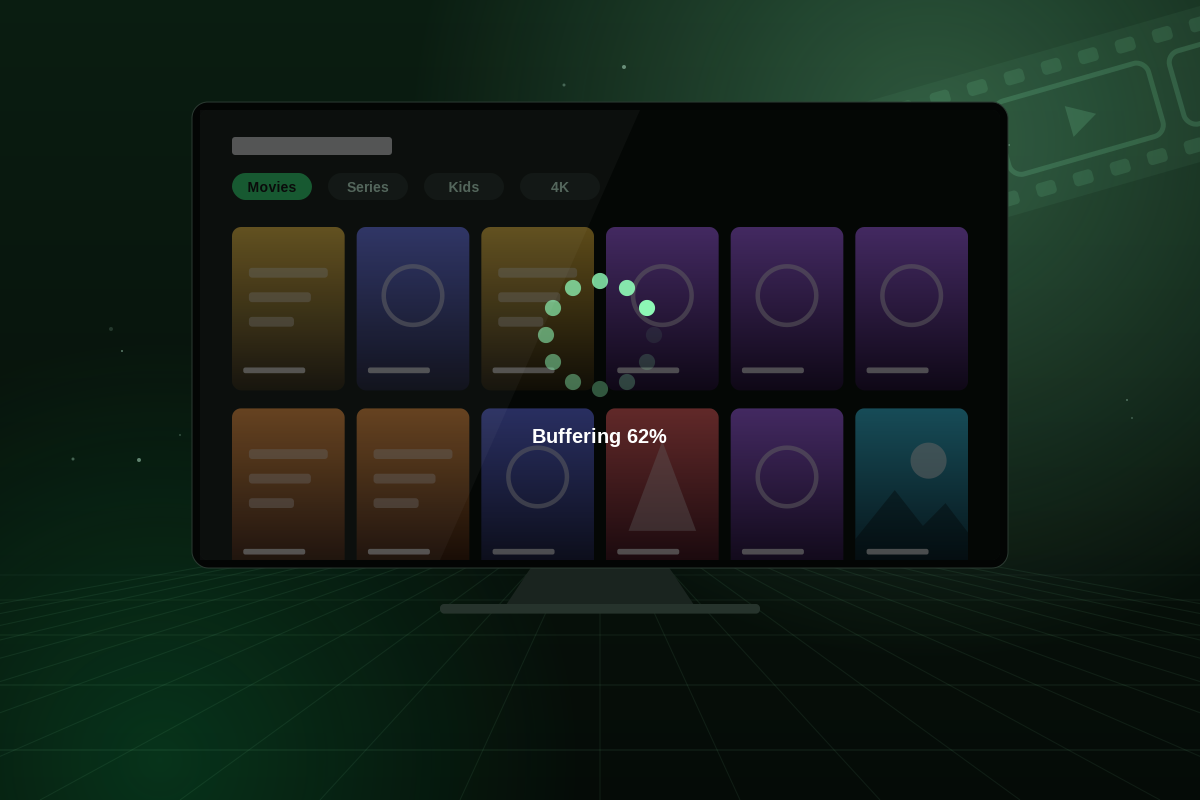
Nothing spoils a match or a film like a frozen picture and a spinning wheel. The good news is that most freezing comes from things inside your home that you can fix in minutes. Work through this list from the top; the quickest fixes come first.
1. Restart everything
Turn off the router, the TV and the stick or box. Wait thirty seconds, switch the router on first, wait until its lights settle, then start the TV. It sounds basic, but it clears memory and refreshes the connection.
2. Use a cable
An Ethernet cable from the router to the TV or stick is the single most effective fix. Fire TV Sticks need a small Ethernet adapter. If cabling is impossible, a powerline adapter is the next best thing.
3. Improve the Wi-Fi
Connect to the 5 GHz band if your router has one, move the router out of cupboards and away from the floor, and use the HDMI extender so the stick is not hidden behind the TV. A mesh Wi-Fi point near the TV can transform a weak signal.
4. Check the real speed
Run a speed test on the TV or stick itself, in the evening. Roughly 10 Mbps per screen for HD, 15 to 20 Mbps for Full HD and 25 Mbps or more for 4K. If the number is far below what you pay for, the problem is the Wi-Fi or the line, not the service. See our speed test guide.
5. Free up the network
Game downloads, cloud backups, video calls and other people streaming in 4K all compete for bandwidth. Pause the heavy ones while you watch something important.
6. Clear cache and storage
Streaming sticks have limited storage. Uninstall apps you never use and clear the player's cache in the device settings. On a Fire TV Stick, that is Settings › Applications › Manage Installed Applications.
7. Adjust the player
Try a larger buffer, switch between the app's internal players, or turn hardware decoding on or off. If a 4K channel struggles, pick the HD version of the same channel.
8. Turn off the VPN
MYTIVIFLIX does not need a VPN. A VPN adds an extra hop that can slow streams, so switch it off while troubleshooting and see if things improve.
9. Consider the device
Very old sticks, budget Android boxes and older smart TVs can struggle with large channel lists and high-bitrate sport. A current Fire TV Stick 4K, Google TV streamer or Apple TV is a modest cost that often ends the problem.
10. Tell us
If one channel freezes while others are fine, or everything is fine elsewhere but not on MYTIVIFLIX, message us on WhatsApp with your device, the channel name and a photo of the screen. We will check it from our side.